HOME

June 18, 2007

The Macbook Pro and Me

I call this: computers,mac,summer stock,theatre — Posted by KP @ 1:34 pm

Since the purpose of this blog (ostensibly) is to discuss theatre and technology, and ideally both at the same time, now I’d like to examine a few ways that my latest purchase can be used to help me in my job in ways that my Powerbook couldn’t.

The camera

Last year I was supposed to have a MBP before starting the summer season at Reagle. I had the money saved up, but then the IRS took about half of it, and I moved right before leaving for the summer, and the expenses added up to a lot more than I was expecting. So no MBP for me for another year. I thought I was OK with this, until we were planning the second show of the year, Thoroughly Modern Millie.

Our director was coming in from California, but we needed to have a production meeting before he could get to Waltham. We bonded quickly over the phone when we discovered we were both big Mac users, and since the Reagle office is not really set up for meetings or conference calls, we decided to set up my Powerbook in the lobby and have an iChat conference, with everyone gathered around the table and him on iChat. This was the first big moment when I said, “Damn it, if only I had a Macbook Pro!” He had an iSight, and if I had only been able to make that purchase, we could have had a video chat instead of audio, which would have been very helpful for seeing who’s talking (since he hadn’t met any of us) and holding up diagrams to the screen. If there ever comes the need to do that again, now I will be able to do it.

The Remote

This was round 2 of my disappointment on Millie. I ran the projection of supertitles for the show on my Powerbook via Keynote. It was a big deal to get the 100-ft cable run from the projector over the house, up through the ceiling to the booth (this is now a permanent installation and we will use it again this summer). Unfortunately, the cable was run before tech. In theatre it’s customary for the tech and initial dress rehearsals to be run from one or more tech tables, which are usually just sheets of plywood bridging over some seats in the middle of the house, to form a large desk to hold the light board, communications equipment, and for the stage manager and designers to put their scripts, computers and other stuff on. This allows us to see and hear the show up close as the audience will see it, and be near the actors, director, choreographer, etc. for easier communication. Because the video cable was already run, I had to leave my computer in the booth. The result was that I did all of tech from the booth, which is not the ideal way to learn to call a show, or to run a tech. The director and I both had God mics, and every single thing I said or was said to me by anyone in the house, had to be done over the God mics. We got through it, but I kept wondering if it would have been possible with the remote for the MBP to have had the computer sitting in the doorway of the booth (where the cable was just long enough to put it) and for me to have been at or near the tech table and cued it over my shoulder with the remote. It sounds a little unlikely that the remote would work at any helpful distance, and I never tried it for Singin’ in the Rain. Because there are relatively few, and relatively easy video cues, I just got the asst. sound engineer to run it for me during tech.

Improved Wi-Fi Performance

The Powerbooks always had trouble with Wi-Fi because of the metal case interfering with the signal. Somehow the MBP has been redesigned to make this no longer an issue. The antenna is actually in the hinge between the screen and keyboard, which is lower than the old location on the upper edges of the screen, but I guess it gets better signal because the area exposed from the metal is much larger.

Since I usually don’t work in places with good or any Wi-Fi coverage, this improvement could very well be the difference between broadband or no broadband if I’m connecting to a base station far away in the building, or even spilling over from the building next door or across the street. I’ve rehearsed a number of shows in locations where the signal was intermittent or there was a specific spot you had to stand in to get reception. With this machine I’d probably have been able to sit comfortably at my desk and get a decent signal. I’ve heard a rumor from one of my followspot operators that the magsafe cable actually acts as an antenna for wi-fi, but I have yet to confirm this anywhere else. That would be cool if it did, though.

Battery Life

This is a two-part advantage, one part which I will consider cheating. I’d make an unscientific estimate of my MBP’s battery life at somewhere over 4 hours. My Powerbook currently gets about 7 minutes. That’s cheating. But I’m currently writing this on a train, where I’ve been for the last hour and a half, and with my brightness all the way down and wi-fi turned off (but bluetooth going the whole time for internet access, and USB charging my phone), I still have more than half of my battery life remaining (supposedly), and haven’t had to bug the lady next to me to let me use the plug (which is good cause that plug is huge and I don’t think I’d actually ask). The point is, if this model gets better battery life, that’s a big advantage in real-world use when it could mean an extra half hour or more of work gets done.

June 16, 2007

New Goodies Have Arrived

I call this: computers,mac — Posted by KP @ 11:28 am

Since I got my Macbook Pro, I have been busy with some other purchases that I’d been waiting on to go along with it.

Adobe CS3 Design Standard

I plan to use this for a long, long time, especially since it could take me the better part of a decade to come up with money for an upgrade. This one arrived most recently and I haven’t actually spent much time working with it yet. After an installation that seemed to take forever, I’ve mostly just been using the Adobe Bridge app to organize my commonly-used images and give them keywords and stuff. I mentioned that I find iPhoto unsatisfactory for my image-organizing needs, and Aperture and Lightroom too expensive. This fills the gap in some ways, at least. I’m looking forward to playing with it more.

4GB of RAM

I was planning to wait a while on the RAM upgrade, but when concerns came up about the quality of video playback on the projections for Singin’ in the Rain, I decided to have 4GB sent overnight from Crucial so they would arrive in time for tech. Crucial’s $369 was not the lowest price I found, but I’ve ordered from them several times before and trust their quality and service. The RAM arrived in the morning on the first day of tech, but as the computer was already busily projecting things, I didn’t get a chance to do the upgrade until the meal break. When I did, it was pretty amazing. After putting in the new RAM and screwing the cover back on, I turned it on and it flew through the boot-up process. The loading OS X progress bar went by so fast it was almost invisible. Don’t get me wrong, it’s not some magical instant-everything solution. There are some things that happen very fast and others that go along as always, probably due to the rather unimpressive hard drive I wound up going with.

External Hard Drive

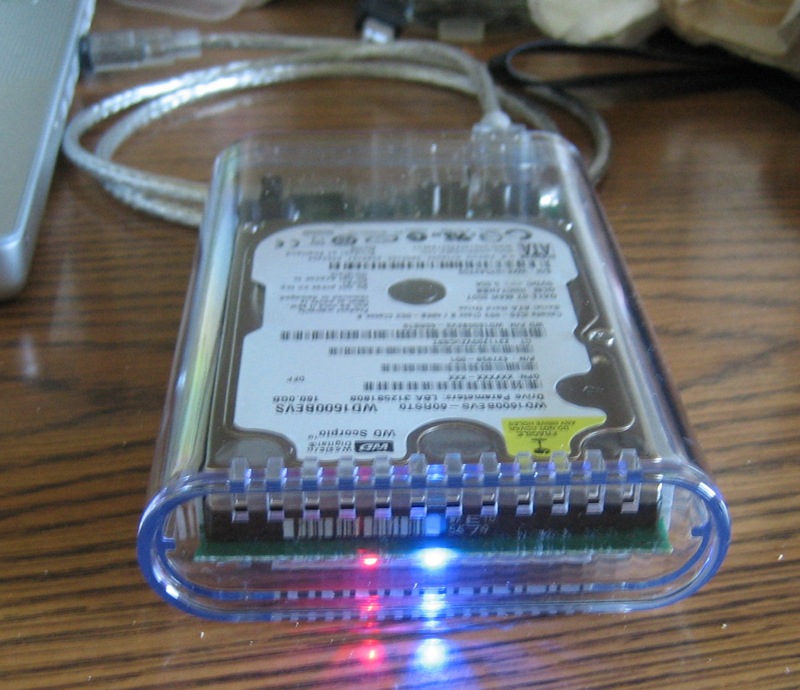
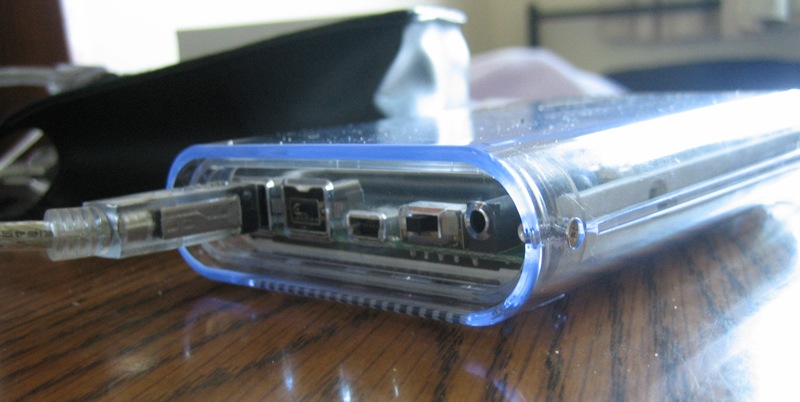
I mentioned before that I didn’t bring a backup drive with me to Waltham, because I was waiting to buy one for the new computer. What I really wanted was an external enclosure offering Firewire 800 and USB 2.0, not requiring its own power source, and holding a 2.5″ drive that would be the same capacity and type as the one inside my MBP (thus the reason for waiting), so that in the event of a HD failure I would have an immediate replacement.

So upon purchasing the MBP, I hopped on to Newegg and was surprised to find that the number of 2.5″ enclosures with FW800 and USB is… ZERO. After some Googling, I found a total of ONE. I wound up ordering both enclosure and drive from a company I’ve never purchased from before called OWC (Other World Computing). They specialize in hardware for Macs. They make this enclosure which looks nice, it’s clear, which is kind of cool. It comes with cables (which is good cause I’ve never had a reason to buy a FW800 cable before), and it even includes the power adapter should I ever want or need to plug it in. The HD I got is a Western Digital SATA 160GB 5400rpm, same specs as the internal one I have (I thought I might go bigger, but it was significantly more expensive, and I prefer to have the drives just be clones of each other anyway). The drive and enclosure went together easily, and it seems to be working well. FW800 is faster than USB 2, although nowhere even near the theoretical speed. I’m averaging about 15-20mbps when backing up, under USB it was about 7mpbs. The backup software I use is Intego’s PersonalBackup, which is the first backup software I have ever found to be user-friendly enough to actually get me to backup regularly.


June 13, 2007

Projections for Theatre Using Keynote

I call this: computers,mac,summer stock,theatre — Posted by KP @ 8:03 pm

Quite by accident, I have become something of an expert on the use of Apple’s Keynote presentation software for running projections for professional theatre. Since I’m currently in the midst of one of these shows right now, I thought it would be a good time to take a look at how it’s done.

To start at the beginning, you must know about the show that gave me my first experience with Keynote. At the time (2003), I had recently switched to Mac, and owned a Power Mac desktop, and my former computer which was an 8-lb. Dell laptop. By this point I knew I could never go back to using Windows to get any real work done, and I accepted that if I ever got a tour, I would have to buy a Powerbook. This was at the end of the product life of the Titanium Powerbook, and I was hoping if such a thing ever happened, that Apple had a better 15″ model up their sleeve. In the late summer, the 15″ Aluminum Powerbook was released, and I breathed a sigh of relief. Even more so when only a few weeks later I got called to interview for PSM of a small tour. A few days after that, the producer called to offer me the job. I literally hung up the phone, grabbed my keys, and ran to the Apple Store.

With my shiny new Powerbook, I began rehearsals. This show had a really large projection component, both still images and video, and they were not just decorative. The actors interacted with and referenced the images throughout the show, and any errors would make the show not make sense. The video designer was happy to see I had a Powerbook, because he intended to use the then-new Keynote app to run the show. The fact that I owned a Mac laptop simplified things greatly, and I was more than happy to offer its services, since it gave me the opportunity to tinker with my new toy, and a free copy of Keynote to boot. I learned a lot from our designer as he experimented with the slides and played with various features. I had to become pretty proficient with it, because he would not be traveling on the tour, and as the show was still going to be undergoing changes, I would have to be able to handle most situations that would come up. The only thing he would do was editing of the videos and images themselves, which would then be FedExed on a DVD to whatever theatre we were at, and it was up to me to create the slides around them and the transitions between each one to fit the needs of the show.

Sometimes I would be asked ten minutes before a performance to add or remove a border around all the images, or to move or crop all the images in some way, or to swap or reorder them. I think at its peak the show had about 70 projection cues, and I’m not kidding when I say I was asked ten minutes before a show to make changes to all of them. I got very fast with Keynote, and much of the credit has to be given to the intuitive drag-and-drop interface and that magical way Mac apps have of answering all your wishes when you say, “I wonder if I can do this.” This was only version 1 of Keynote, and it has only gotten more stable and flexible through version 2 and now 3. One huge complaint I had on that tour was that the display on my computer while I was running the show did not give me any helpful information about my presentation that I couldn’t already see on the screen. Even the column of thumbnails on the side didn’t scroll as the slideshow progressed, so once you reached beyond the first ten or so, you didn’t even know what was coming next.

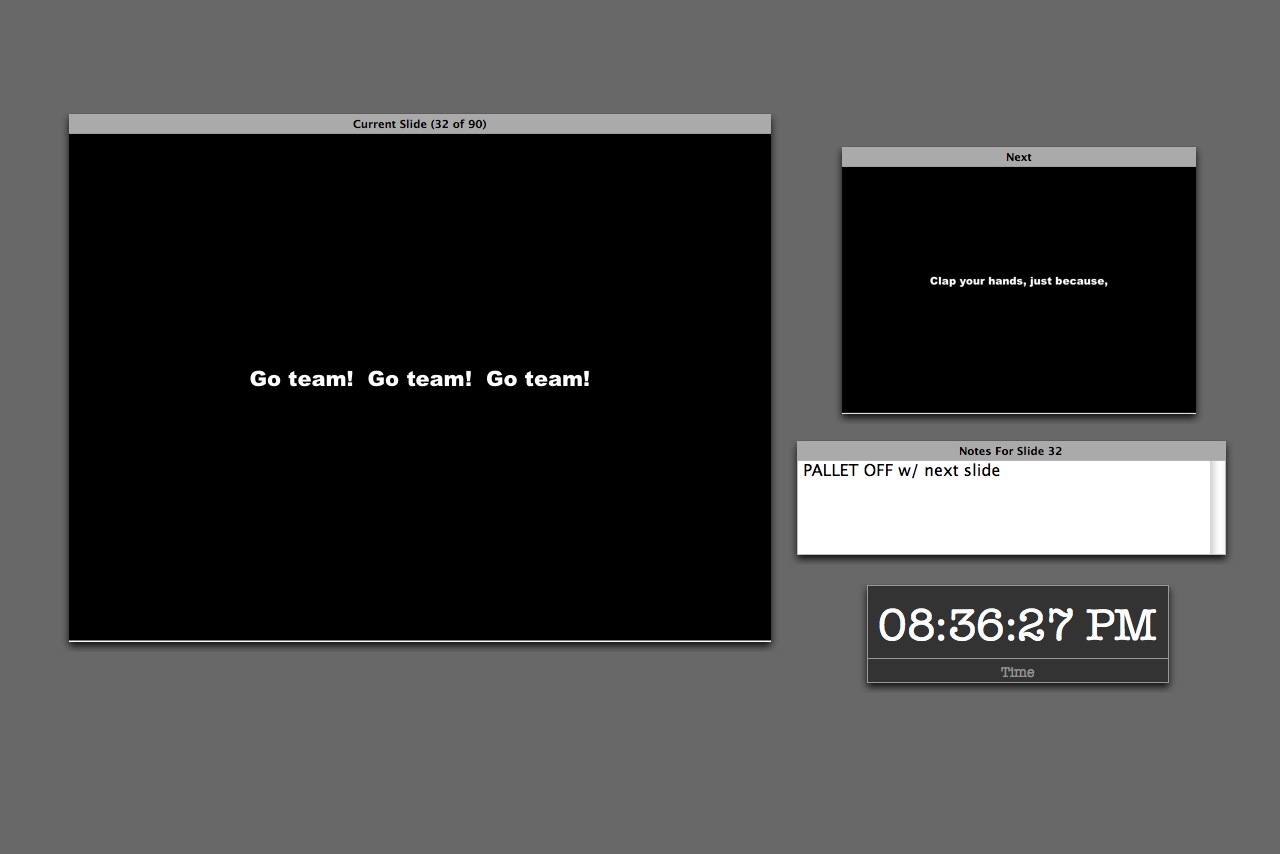
Nowadays, when I’m running a show my screen looks like this:

You can choose which elements to include on the screen, where to place them, and resize the current and next slide displays. I like this layout because it places the emphasis on what’s on stage so I don’t get confused, but also gives me a good idea of the cue I’m about to go into.

This is from my file for Thoroughly Modern Millie, which I’m proud to say has since been used in productions in North Carolina and California, and I even got paid! The only projections in that show are supertitles, but there’s a ton of them (90, including the blank slides for when nothing is supposed to be seen), as they are used to translate for the two Chinese characters. It was one of the greater challenges of my career to be displaying Chinese translations in real time while also calling the rest of the show. You can see I’ve used the notes field in this slide as a substitute for my calling script. During the Chinese sections I literally couldn’t look down for the entire scene, because each slide only shows a few words and I had to make sure I was on the right one for what they were saying. I don’t speak Chinese, but I did learn all the dialogue in the show. Having that notes field conveniently placed made it possible for me to keep my head up watching the screen and the actors, while being able to get a quick reminder so I could call cues and give warnings and standbys without the script.

The clock of course is handy for noting the running time of the show.

On the tour I first used Keynote on, it was part of the deal that each theatre supplied the projector. We had to deal with whatever they had, and I was prepared to hook up to any kind of connector: DVI, VGA, BNC, RCA, or S-Video. The Powerbook has a DVI and S-video port, and all the others could be done with adapters that I carried. BNC could sometimes be problematic because the signal had to go through two adapters: S-video out to RCA and RCA to BNC. The digital formats (DVI and VGA) tended to be the best, but sometime depending on the projector and the theatre the analog actually worked better. This is why I got good at setting up and breaking down the whole shebang very quickly. I could walk into a theatre for the first time and be pointed to the projector with my laptop and a couple adapters and have video running in probably two minutes. Hours and hours and hours would sometimes be spent if there were problems with the projection angle, bulb brightness, height of the ceiling, etc. but getting the show coming out the lens was the easy part.

One of the tough things about doing shows with devices like DVD players and VCRs is that if it’s not a Broadway show using professional equipment, consumer models have a tendency to display things you don’t want an audience to see, like big letters that say PAUSE coming up between cues. The solution to this is usually some sort of physical device that blocks the lens between cues, but this is often impractical, especially when the projector is hung in the air over the audience. The beauty of using the computer is that you can project a black screen between cues, even if you have to exit the presentation. How to do this is not always obvious. When I offer my services to a show, the question I always get is, “But how will you be able to run it without the audience seeing your desktop?” People really don’t believe it can be done. When you’ve done it a few hundred times, it’s ridiculously easy.

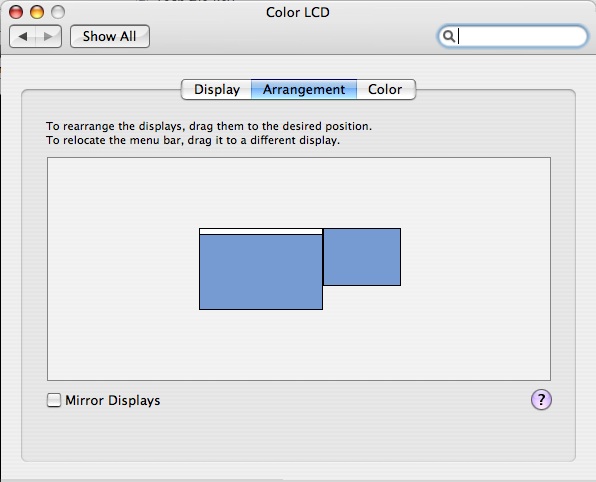
Several steps: you want to turn off display mirroring. In System Prefs/Displays, under the Arrangement tab, you will see a checkbox called Mirror Displays. Uncheck it. I discovered when trying to help the folks at Reagle do this for one of their winter shows that iBooks have their graphics card’s mirroring capability disabled. There is apparently a hack (Google for screenspanningdoctor), but they didn’t try it because it’s not particularly safe. I’m not sure if this is still the case with Macbooks.

When you have mirroring off, imagine the projector is a second monitor attached to one side of your screen. You’ll see something like this.

You can drag the second screen around wherever you want, I always keep it to the upper right as shown. Wherever you put it, the contents of the projection screen will exist in that direction off your desktop. If I’m clumsy and slide my mouse off to the right, you will see it on the projector. There’s nothing wrong with having to back out of the presentation to fix something during a show, the only danger is accidentally flicking the mouse off your laptop into that area leading to the other screen.

Also notice there’s a little white border at the top of the center screen. This represents your primary display, in the shape of the Mac menu bar. Whichever screen you drag that white bar to is the one which holds your menu bar, dock, and by default your desktop icons. You do not want this on your projector. If somehow it winds up there, just drag the white bar back to the other display.

Now you have two screens: your regular one on the computer, and the other, rather empty one on the projector. By default, your desktop wallpaper will probably end up on the projector as well. This is probably not what you want. I have an image in my wallpaper folder that is all black. It’s called BLACK so it’s easy to find. When you go to System Prefs and select Desktop and Screen Saver, you will get a window on both your computer and the projector’s screen. The cool thing is that using the window on the projector, you can sets its wallpaper independently of your normal desktop. So I have the projector set to BLACK, but I can keep my favorite desktop wallpaper on my computer. You should only have to do this once, after that the computer will remember to assign the black desktop to the projector. Unless you make the mistake I made this afternoon, when I plugged the cable in to my computer before turning on the projector. Apparently this confuses the computer, for it set my desktop resolution to 800×600 or something, forgot the wallpaper, and had mirroring turned on. I will remember not to do that again.

Another word of advice: whenever possible, focus the projector on a nice projection surface before you try to do anything with your desktop settings. It never seems to work this way for me, I always wind up trying to manipulate the windows while the projector is throwing an out-of-focus, backwards, horribly-keystoned, and way-too-far-away-to-read image across the ceiling, proscenium and several layers of set pieces. It can take several minutes just to find the mouse pointer. You have to know the desktop prefs window pretty well to be able to set it under those conditions.

When doing a show I do like to keep the desktop settings icon on the menu bar for quick access, especially for shows with analog connections, because the display will not be detected automatically, so you have to select “Detect Displays” every day when you plug the projector in. The screen will flash for a second, and then you will be good to go. You can also adjust the resolution of both screens from that drop-down menu. Unless you have a really fancy projector, its maximum resolution will probably be lower than your computer’s. When you first set it up, the computer may lower res to match the projector (especially if mirroring is enabled by default), but this doesn’t have to be the case. Just go to the drop-down menu and select the normal resolution for your computer and whatever you want for the projector.

A few basic things you should do to your computer when using it for a show:

  • Always have the power cord plugged in when running the show
  • Put the computer to sleep: never (Energy Saver prefs)
  • Put the display to sleep: never (Energy Saver prefs)
  • Turn off all system sounds (Sound prefs)
  • Turn off “play feedback when volume is changed.” If you ever want to hear the little blip, you can hold shift when hitting the volume keys.
  • Mute the startup chime just in case your computer crashes and needs to restart (I use Tinkertool System, but there are others)
  • Start screen saver: never (I forgot to do this when switching to the new computer, and came back on a break during tech to see the default “Flurry” all over the house curtain)
  • Turn off any background apps that have notifications that might pop up (anti-virus, backup reminders, etc.)

Before starting the show:

  • Close all programs except Keynote
  • Shut down background apps that consume resources
  • If you’re outputting audio to the sound console, you’ll probably want to keep your Mac set at a consistent level and let the engineer control the volume. So to start the show make sure you’ve got your computer’s volume where it should be. For Singin’ in the Rain, I keep mine at half.
  • If you’re really concerned about speed and stability, a restart right before the show will probably give you the most reliable performance.

Designing Slides
Keynote has lots of options for deciding how your slides look and how they change. I won’t go into all of it, but I will hit some of the most common techniques I use.

When designing for theatre, you will probably always want to choose a master slide with a black background. You can add colorful backgrounds by creating a shape the size of the slide.

My friend the Yellow Box
When you click on “Shapes” in Keynote, by default it gives you this textured yellow box. The yellow box makes a pretty good target on a black background, and I use this to move and resize around the screen until I’ve figured out what size the projected image needs to be. In this case, we have a drop that flies in with a movie screen in the middle of it, and the movie needs to hit only this part of the drop. So I fiddle with the yellow box, making adjustments until it’s the right size. Then I take the actual content for that slide, the pictures or videos, and drag them so that it’s the size of the yellow box. There are very easy arrangement buttons to help with this if necessary — forward, back, group and ungroup. If you’ve got an image that you don’t want to distort, or a video that can’t be stretched to the correct size, you can then create some black boxes and layer them over the edges of the images to essentially crop them. This leaves you free to manipulate the original image below and drag it around until you like which part is cropped. It also makes it easy to later drop in a new image without losing the work you’ve done with the black borders to size it properly.

So when it’s 7:55 and your director says, “Can all the images be six inches narrower on the left and right side?” you can just make two black rectangles, drag them around until they have the desired proportion on stage, and once you have the first slide looking good, group the black shapes together, select them, and copy. When you paste them into the next slide, they will retain their position in the slide. So all you have to do is select every slide and hit command-V in each one, and you can rest easy knowing they will all match. This is the secret to making changes when you don’t have the time to actually inspect each slide on stage. Get one looking right, and then create something that you can paste in every slide to use as a guide.

Transitions can do some nifty things, but most of the shows I’ve done have not been the kind of situation to use anything fancy. A simple fade in and fade out are the most common. The Inspector in Keynote has a tab called Slide which has the effects for how that whole slide changes to the next (applying a transition affects how you go OUT of the selected slide). An important concept is that you can set transitions for the whole slide, or for elements within the slide. If you can’t get it to do what you want, this may be the problem. When you set the transitions, make sure you know if you’ve selected the actual slide or a part of it.

Say you have a slide with a picture-within-a-picture. You can have the larger picture be displayed when the slide starts, but the inner one appears later. To do this you select the element you want to change and go to the Build tab. If the Build options are grayed out, you need to select the object you want to apply the effect to by clicking on it. There are too many options to go into, but you can set the action to occur either by a certain number of seconds’ delay, or with another button push. The timed ones are great if you want to fade the image with a light cue for instance, but if you want to cue it yourself you can control it with the button. You can build in and out of an image, and can set multiple builds per slide and the order in which they happen. I’ve only ever needed to scratch the surface of this feature, but it can do some pretty cool things.


June 7, 2007

Additional Thoughts on the Macbook Pro

I call this: computers,mac — Posted by KP @ 8:26 am

I have received some questions about battery life. What you have to remember is that I have a Powerbook with approximately seven minutes of battery life, so I’ve gotten used to searching for an open outlet before I ever take the computer out. I always feel better plugging in when the option is available, just so I know I will have battery power saved up if something comes up later when I can’t plug in. But to answer this question, I decided to run my battery down last night.

I spent about an hour at rehearsal with it unplugged, during which time I loaded about 500MB of test videos for our projections from a CD. I’m told the optical drive is one of the more battery-intensive components of a computer, for what it’s worth. Then I played the files back a few times, checked e-mail, and did a little web browsing. Wi-fi was on the whole time. I also spent some of the time using the USB to charge my cell phone (whose talk time will soon rival the battery life of my Powerbook, if Verizon doesn’t release the Treo 755p soon).

When I got home I plugged in my EyeTV, and watched about an hour of the History Channel until something came on I didn’t want to watch. Then I did some more browsing, transferring files from my old computer, and downloading software. Again, wi-fi in use the whole time. Screen brightness was around 75%, and as I mentioned, my keyboard lights like to come on when they really don’t need to — they must be reading this because they came on just as I was typing that.

Eventually I installed Parallels and got to the point where it was converting my VirtualPC drive image to Parallels format, and the battery meter was in the red and telling me I had about 12 minutes left. I had not gotten any low battery warnings yet. But because I didn’t want to interrupt the conversion process, I decided to end my experiment and plug in. All I can say is that I used the computer for at least three and a half hours, and had at least 12 minutes left. This is also the first time the battery has been allowed to drain, so it may still be calibrating itself. If it means anything, and I wouldn’t trust it myself, I just unplugged the cute little MagSafe adapter (which is much more aggressive as a magnet than I realized), and it’s estimating 4:46 remaining from a full charge. It said 5:30 or something a second ago, which is why I said I wouldn’t trust it. Now it says 4:52. Anyway, I kind of hate rechargeable batteries because they play these mind games with you, and nobody seems to agree on how you’re supposed to care for different kinds of battery.

Something else I forgot to mention earlier: I was surprised at the lack of an S-video output on these models. DVI is better, but as I have said, I do a lot of work on shows with projections, and one of the things I originally had to do when touring with my PB was to load into each theatre where they supplied the projector, and have all the adapters for any kind of video output.

I’m not sure if I never noticed, but it seems from checking out EveryMac.com (an excellent site for checking specs on various models), that maybe this is the first version to eliminate the port. I was relieved to see that Apple now makes a DVI-to-video adapter, with both S-video and composite (RCA) connectors. And since I now have to pay for it as opposed to the old S-video to RCA adapter which came free with the computer, I was pleased to see it’s “only” $20. The box still includes the DVI to VGA adapter. I will miss the port a little, but I’m just glad they eventually went back to including the Firewire 800 port — I was rather upset when the first MBP came out without it. I’m now looking into external HD enclosures, and would like to get one with FW800.


June 6, 2007

Software

I call this: computers,mac — Posted by KP @ 9:54 pm

I’m having fun playing with the new (to me) software on the Macbook Pro. Front Row is pretty, although I’ve only really used it for music so far. I’m more excited about the remote’s ability to run Keynote presentations, but I don’t think I’d trust it to run a show. I will have to test it from distances longer than the walls of my apartment and see if it could be useful for rehearsals.

I was really hoping to get a new Mac with iLife 07 or whatever they plan to call it, but since I never shelled out for iLife 06, I was looking forward to those small improvements. I can’t believe iPhoto still doesn’t have subfolders or sub-albums, or sub-something (then again, I’ve been saying that about iTunes for so long I gave up years ago). Like for instance, I’d love an album of “Reagle Players” photos, which would contain thousands of pics, which could then be broken up by show. I swear I must have literally a thousand photos from the photo call of The Sound of Music and not enough time in my life to sort through them with that interface. I just watched a nice podcast from TUAW about Aperture, Apple’s pro photo managing app, which looked like an overpowered version of what I would like. And then I said, three hundred dollars, are you f%#$&*#)@ kidding me?!? If it was $100, I’d consider it expensive, but worth the convenience. I’m not a professional photographer, it’s not a business expense that will be subsidized by the income I’ll make off of it. While I do occasionally use iPhoto to organize photos for work, I will never need a tool like Aperture. It’s bad enough that I actually pay for legitimate copies of Photoshop, and I even sometimes use that in my job (not in ways that fall into my job description, but I sometimes do side work designing logos, paper props, etc.) And hey, I occasionally dabble in the Photoshop contests at Fark. I’ve actually won three of em. I’m still using Photoshop 7, but I just ordered the upgrade to CS3 to go with my new Intel Mac. After paying a little less than a month’s rent (I live in Manhattan, remember), I plan to be sticking with this version for an equally long period of time.

I’ve downloaded the trial of Parallels to play with, using my disk image from Microsoft’s Virtual PC. The key here if you’re going to try to do this is to first go into VPC on your old computer and remove the Virtual Machine Additions if you have them installed, as they can cause conflicts with Parallels. Then shut down your VPC and transfer its disk image to your new Intel computer. After that the transition was completely painless, as Parallels can recognize VPC images and convert them quite quickly. I haven’t spent that much time with it, but it definitely runs Windows as well as a real computer. It’s nothing at all like the slow-motion experience of VPC. It looks great (if Windows can be said to look great) in full screen mode. Coherence mode, where you get a floating Start button and taskbar and Windows windows appear intermingled with OS X windows, is somewhat nauseating as a concept, but it’s really incredible that it can be done. It also works like VPC where you can have a single window in OSX showing your entire Windows screen. When I get some time in the next couple days maybe I’ll try some games and see how they do, though I guess any serious gaming still has to be done with Boot Camp, which I haven’t looked into at all yet.

One app I found in my Applications folder that I was confused by is called ComicLife. I don’t know how long this has been bundled, but I’d never heard of it. When I said, “What the hell is this?” and opened it, I was surprised and amused to see it’s a comic book maker, with an insanely intuitive interface, direct access to the iPhoto library, and the most hysterical sound effects for clicking and dragging any app has ever had. You can see I threw this together in about 2 minutes without ever using the app before.

I can’t think of anything particularly brilliant to do with it at the moment, but having done this kind of thing the very long way in Photoshop, I’m sure it will come in handy.


First Impressions of the Macbook Pro

I call this: computers,mac — Posted by KP @ 9:21 am

UPDATE: Check out the Mac topic for more recent posts about my new Macbook Pro.

I’m not going to call this a “review,” since I think it should take more than a few hours of use to come up with a real opinion, but here are my thoughts about my new purchase:

First of all, after staying up until 4AM last night to make sure everything was transferred over so that I could begin using it as my primary computer at rehearsal today, my first reaction is that it looks just like my Powerbook. I haven’t installed the haxie to make the dock black yet, and I’m not sure if I want to. I’m trying not to install anything that screws with the system too much, so if any bad behavior shows up I can rule out that sort of thing.

Other than that, though, there are few things to remind me that I’m using a different computer. I’ve never been a fan of the wide trackpads that have always been on the 17″ Powerbooks, and also the 15″ Macbook Pros. It’s mostly a matter of not being used to it, but that huge button just feels harder to press. I’m also having a hard time adjusting to the tracking speed (more the acceleration, as I’m used to making it faster with SideTrack — again, I don’t want to mess with haxies just yet). Interestingly, when I went to the Sidetrack site to make that link, I saw a notice saying it’s not yet compatible with Macbook Pros made after October 2006. So there. There’s a post saying they’re working on it, but since the last update was in November 06, I fear it may not be in development anymore. I mainly used Sidetrack on the Powerbook because it has no built-in scrolling feature. Now that Apple has introduced the two-finger scroll it’s less important, but it also does some other cool stuff, like letting you assign extra mouse buttons to things like tapping the corners of the trackpad. It also allows greater control over pointer speed and acceleration.

Two-finger scrolling has always felt a little weird to me, but once I figured out that I have a tendency to put my fingers too close together, that helped. I also needed to uncheck the option in System Prefs to ignore accidental trackpad input. My experience has always been that it ignores more good input than bad. The trackpad itself has more friction than I’m used to, but I’m sure that’s just because it’s new.

My keyboard lights come on by themselves quite alot. Sometimes my hand passes over the light sensor in a slightly shadowy but flourescent-lit room, and they come on for a couple seconds. I don’t really want to turn off the sensor, but I may.

OK, so this new exciting screen. It’s bright. It’s pretty. I can’t say that there’s anything about it that would make me say “OMG I’m looking at a kind of screen I’ve never seen before!” even though that’s the case. Most new computers, certainly new Macs, have a brighter, prettier, and higher-resolution screen than my Powerbook, so I tend to have the same reaction to all of them. It definitely is a nice bright white, the kind of light you get from an LED. The backlighting looks pretty even. The side-angle viewing seems good to me. Here’s the inevitable side-by-side-with-another-computer-in-the-dark shot:

That’s the MBP on the right, of course. The other computer is a Rev. A 15″ Albook from Sept. 2003. Not exactly a current comparison, but there it is. Both on maximum brightness. It’s bright. I can’t imagine ever needing it to be brighter. The last couple clicks on the brightness scale are painful. There’s a moment, I think just when it starts up, where it kicks to full brightness for just a second before going to whatever level it’s set at, and it’s like a flashbulb going off. You’d only ever need something this bright in direct sunlight, I think. I don’t spend much time outdoors, but I’ll see if I can try it soon.

The two most important things about the screen to me:
1. No bad pixels (phew!)
2. The grainy/sparkly defect from the previous MBPs is gone. Sucks for anyone who has one, but I’m glad at least future models won’t come with it.

Santa Rosa
. Uh, OK. It’s fast. Of course it’s fast, it’s sitting next to a freakin’ 1.25GHz G4, and it has twice as much RAM. What am I supposed to say? I’ll leave it to someone else to post benchmarks and comment on performance relative to something more modern. Of course I’m very happy with the speed improvement. And the wireless seems faster, both for internet and file transfers, even though I’m using a wireless-g router. Not sure if that’s because the bottleneck was actually with my processor and/or RAM on the old computer. Anyway, better wireless makes me happy. PC users make fun of me too much when they can get a signal on a base station and I can’t.

One of my concerns was how do I get this thing safely to and fro. I carry my Powerbook inside my bag in a MacCase sleeve, which I love to death. When the MBPs were first released last year, I was kind of dreading having to buy a new case to account for the slightly longer length of the MBP. I was hoping the extra half inch of room in my PB case might save me the trouble, and indeed it has. The MBP fits in the case with about a quarter inch to spare. Maybe not as well protected as the PB, but it will do. The only thing that’s disappointing for any true Apple fan is that the Apple doesn’t sit quite centered in the window, but it’s close enough that there can be no mistake about what’s inside.

Speaking of size comparisons, here are the two side-by-side, the MBP on top:

A lot of the stuff I’m discovering is old news to anyone with an older MBP, so I’ll try to keep that to a minimum, but I still have a lot of things to play with that are new to me, like Front Row and its cute little remote, and Intel in general. Stupidest thing I did when packing for this summer: not considering that I would be wanting to install Windows on this machine and bringing along one of my existing Windows disks. I really want to try out Parallels, but I don’t feel like purchasing a new version of Windows, and I’ve got one or two XP codes I don’t even use anymore. Perhaps I can have one of those disks sent up to me with my mail. I also have my VPC disk image on the PB, I’ll have to research if something can be done with that. I’m not sure how much I’d really use it, but as a stage manager preparedness is key, and once in a blue moon it helps to be able to do something in Windows. I’d also like to try some gaming.

Well those are my thoughts so far, I’m sure I will be discovering lots of things as I actually start to use it.


June 5, 2007

Update: I have cancelled my Macbook Pro order!

I call this: computers,mac — Posted by KP @ 10:27 am

I have always said that all good ideas come in the shower.

After the hubbub of this morning, I finally took a shower. And while in the shower, I began turning things over in my head. Gee, it was surprising to me that I only wound up wanting one build-to-order option, and it was RAM of all things. I imagined some Apple technician having to open up a box just to stick some RAM into an otherwise stock Macbook Pro. What a delay for such a simple thing.

But maybe, I thought, if it’s built-to-order that means they actually turn it on and make sure it works. Nah, I said, then thought of something I never noticed before: my first Mac (a PowerMac) was built-to-order, and it was a lemon. My Powerbook which serves me so well was bought off the shelf, an hour after I was hired for the Abundance tour. Not that that should mean anything, but it was interesting. Such a shame to waste all that time, just for something that could be bought later.

Then I said to myself, “Self, why didn’t you just buy a stock model and buy the RAM later and skip all this mess?” And then a tiny little voice said,
“You probably could get all four gigs of RAM from Crucial for less than $750.”
And I said, “Self, shut up! I don’t even want to look and see how much they charge.”

But by then I was out of the shower, so I went to crucial.com, and lo and behold, ALL FOUR GIGS for $369.99. Now remember, Apple is charging $750 just for the EXTRA 2 gigs!

The thought of this, plus having the machine in my hands today, was too much. I called the Apple Store at the Burlington Mall, and asked if they had the 2.4GHz in stock. Yes, he thought so. I explained that I was canceling an online order if that was the case, and I needed to know, and how many they had left. He asked me matte or glossy, and looked it up and said he would reserve one for me for the rest of the day. If I had thought of this scheme a little earlier, I would be typing on it right now, but alas I had no time left before rehearsal. I will have to get it over the dinner break, at 5:00. I have made runs to Burlington to pick up exciting electronic items over dinner before, and it should be easy. So I canceled my $3500 order at the online store, and will pick up a stock model for $2500 plus tax, and worry about the RAM at a later date.

The next post you read will in all likelihood not be from this computer.


A Puzzlement

I call this: computers,mac,summer stock — Posted by KP @ 8:51 am

An interesting question arose as I typed my last post (about the purchase of the Macbook Pro). I said that I had been in need of a new external hard drive for some time, but have been waiting to see what the capacity of my new computer would be before deciding on one. Here I am up here in Waltham, without an external hard drive. My backup program (Intego’s Personal Backup) nags me every few days about how I haven’t done a backup since 5/22/07, and with the entire Reagle season sitting on my 4-year-old hard drive, don’t think this doesn’t worry me. It’s been on my Treo’s Todo list for a week, “Backup to DVD.” Have I done it yet? No. It takes for-freaking-ever, and I’ve been busy, and when I’m not busy I’m lazy. But I really should. But as I have to leave for rehearsal in a little over an hour, now I don’t have time. See how this happens?

Anyway, all this musing about getting that external drive ASAP led me to mention how important it is, since my computer will be running all the video for Singin’ in the Rain. This is one of those shows where the projections aren’t just pretty, they drive the plot. A crash or deletion of something important would need to be able to be fixed right away, on-site.

As I typed this, this is where the puzzlement struck me: if my Macbook Pro arrives somewhere between June 8-13, as Apple says, then it will either be right before tech, or right before the first performance. Which computer gets to run the show?

In this corner, we have the Powerbook. I’m typing a freaking blog post, and the hard drive is cranking, the fan is spinning, and it’s beachballing for a second when I switch between Firefox and Entourage. It’s old, and while it’s done fine for basic projections, sometimes I wonder if it could still handle full-motion video and audio. This machine has been running projections for professional theatre since I bought it. Its credits include the tour of Abundance, Earthquake Chica at the Summer Play Festival 2004, The Reagle Players’ production of Thoroughly Modern Millie, the comedy show Laughing Liberally at Town Hall, and the Charlie Chaplin musical Behind the Limelight, where it ran the coolest cue I have ever called in my life (actor-Charlie walking into the screen and disappearing into it as the real Charlie appears in his place on screen and shuffles off into the distance). I have never, NEVER had this machine fail in performance. I once had to start an invited dress rehearsal 20 minutes late because Keynote 1.0 used to crash occasionally when you tried to save, but that’s a separate issue. I have run all three versions of Keynote on it, and it has been 100% reliable in performance — no delays, no mistakes, I have called thousands of cues on it, and it’s as accurate as calling a light cue. However, due to its age, and the fact that it sometimes has trouble, you know, rendering a web page… I worry that someday I’m going to ask it to run a full-screen video with audio output to the sound board, and it’s going to have to think about that for a second or two. In its defense, last December it did run video with audio at Laughing Liberally, and to my surprise did just fine. It was a very last-minute thing. I got to the gig about six hours before the show and said, “You’re running video by hitting pause on a DVD player? Gimme the files and half an hour!” I was a little concerned that it could handle it, but it seemed fine to me.

In the other corner, we have the newcomer. So much faster, I’m not even going to try to quantify it. Will there be enough time to make sure it doesn’t have something wrong with it? A habit of kernel-panicking just when you least expect it? The Powerbook has recently taken to kernel-panicking when I wiggle the connector for my USB hub, but at least I expect it. Of course the earlier the MBP arrives, the more time there would be to test it. But five days of tech and dress might not show all its flaws compared to almost four years with the Powerbook. But it’s my new toy!

I think I will try to use the Macbook Pro, as it has to do its first performance someday, just as the Powerbook did when it was new. You can be sure the Powerbook will be sitting in my bag right behind me in the booth, with the current show files on it, ready to be swapped in if there’s a problem. If the MBP doesn’t arrive until the middle of tech, I will need a day or two to get all the software on it and make sure everything’s good. In that case I may decide to make the switch for the second week of performances, in the meantime letting the MBP get on the projector and run through its cues before the preshow check. It would also be interesting to project both on stage and see if there’s a difference in the quality — if the MBP is rendering noticeably better, that would be an argument for using it as soon as it’s ready. We will have to see.

There are also other important uses for the machine that runs the show projections: we have plans to do a screening of the original movie for cast and crew at some point. And most of all, and I promise to take better pictures of it this time, here is Super Mario Bros. 3, arguably the greatest game of all time, being played on stage during the dinner break of a tech rehearsal for Thoroughly Modern Millie. What you can’t hear is the game audio plugged into the sound board and being blasted through the 1,100 seat theatre.

We had several problems here: there wasn’t really a projection screen to use, as in Millie the only projections are supertitles that translate the comic brilliance of the two Chinese characters. For this reason the projector was tipped up and not really centered on stage, and the screen was just a narrow strip three feet tall. Also, we did not have a light-colored drop to bring in as a projection surface except one that was way upstage. This time, we will have a real screen to play with.


My credit card is smoking!

I call this: computers,mac — Posted by KP @ 8:41 am

As predicted (say what you will about spreading rumors, they’re usually right about these things), the Macbook Pros were released today. No big surprises, they include the new Santa Rosa processor from Intel, which to put it in terms I can relate to, is still “faster than a G4.” The coolest thing about the Santa Rosa, I guess, is that it increases the amount of memory the computer can use, from a maximum of 3GB to 4GB. Now, Apple, they love to be sneaky. They have two memory options: 2GB, which is two sticks of 1GB RAM, or 4GB for a bajillion dollars (or $750). So if you someday want to buy more RAM from a more reasonably-priced vendor, you don’t have the option to buy a 2GB stick from Apple now and plug another one in later, you just wind up having to take one or both of the sticks out to put in your new RAM, and I hate to see RAM go to waste. So I bit the bullet, and not having anything else to spend ridiculous amounts upgrading, I got the whole 4GB. Which again, in terms I can understand, is apparently going to be faster than the 1GB my Powerbook has.

The other not-unexpected update is that they do indeed have the LED-backlit screens, which are supposed to provide more even backlighting, lower power consumption (which is always an issue for me), and while doing all this cool stuff, are also better for the environment because they contain no mercury. I have been rather miffed at Apple since it became known that the 15″ Macbook Pros have a screen flaw in which the anti-reflective coating creates a grainy or sparkly effect. You can see this, as far as I can tell, on every 15″ Macbook Pro — not the regular Macbooks, not the 17″ Pros. If you take a large white object, like a blank Word document, and drag it around the screen, you will see the grain stay still while you move it around. See this thread on MacNN, where I first learned about it. Since then, I have taken every opportunity to examine a 15″ MBP and have never found a screen without it, although on the glossy screens it’s a little less distracting. A large part of my excitement is not about the LED screen being better, but about it being different, and hopefully not from the same manufacturer who made the crap in the last model. Apple has been aware of the problem, although they have not offered any kind of replacements or recall, and it’s apparently never been fixed in the new units coming off the assembly line. I’m willing to put up with being the guinea pig for whatever’s wrong with the LED screens as long as it’s a new problem.

So, all that being said, I woke up bright and early to make sure I got my order in so I would be near the top of the list for getting this thing shipped out. I popped out of bed and went first to TUAW , where I figured I’d find word of the release (or not). Indeed, it had been released, and I read up on it a little before heading over to apple.com. There isn’t much to consider:

  • 2.2 vs 2.4GHz (this is a decision you’re stuck with forever, and faster is always better)
  • How much RAM (2GB or 4GB)– as I said, I decided not to waste RAM by buying two smaller sticks, so I got it all now — this is also good if you ever have problems because if you have non-Apple-supplied RAM, they’ll always try to blame it on your RAM.
  • Glossy or matte screen — Glossy is beautiful, but matte is more accurate in terms of colors, and less succeptible to reflections. I got matte.
  • Hard drive:
  • 160GB, 5400rpm (standard)
  • 200GB, 4200rpm (slooooow, but bigger)
  • 160GB, 7200rpm (fast, a little more expensive, may consume more battery)
  • I originally chose the 160GB, 7200rpm option, but when I went to check out it said “Estimated shipping: 4-6 weeks.” I decided to go back and see which component was causing this delay, and when I found it was the hard drive that I wasn’t so sure about anyway, I quickly changed it to the stock configuration, which resulted in a shipping estimate of “1-3 days.” Much better. I can replace it someday if I run out of room (which voids the warranty, but I’ll cross that bridge when I come to it).

    I threw in one of those USB phone jack things that allows you to still use dial-up if you so desire. Since I spend a lot of time in places without internet access, this might someday come in handy, though I couldn’t even tell you when the last time I used dhttp://www.blogger.com/img/gl.link.gifial-up was. In some hotel, probably. Normally I just dial up through my cell phone, but I suppose someday I might be in a basement with a phone line and no cell service, and then I’d be cursing myself for not getting one. I’ll admit now, I spent 50 bucks on this thing and will probably never use it, but I did save $150 on the hard drive if you look at it that way.

    I did not get Applecare, and here’s why: the computer comes with a 1-year warranty. I can add Applecare at any time before my warranty runs out. So if in May of 2008 I decide I want Applecare, I can pay for it then and extend my warranty by two years. But if for instance after a year I decide my hard drive is running out of room and I’m going to buy one at Newegg to replace it, then I’m going to void my warranty. If upgrading the hard drive is more important than being under warranty, I don’t want to have already paid upfront for a 3-year warranty I’m going to void. So I didn’t see a reason to throw away hundreds of dollars for something I may not be able to use. If I’m still using the MBP with its stock components as that year runs out, and plan to keep it that way, then it would benefit me to pay for Applecare when the time comes.

    When all was said and done, the total price was $3298 before shipping and tax (almost all the difference over the $2500 starting price was due to the RAM upgrade).

    There were lots of other goodies to buy — the extra battery was one I actually put in my shopping cart before removing it — but I remembered that everything I buy has to be shipped or carried back to New York at the end of the summer. I will definitely upgrade Photoshop to one of the CS3 suites (I should order that now, actually). I will be getting one of the new Airport Extremes with the faster wireless-n to match the MBP, but right now I have an Airport Express that I use up here (which I’m hoping Apple will update some day), and I think that can wait until I get home. I would also like a second power adapter so I can leave one plugged in at home instead of taking the whole thing apart every time I leave the house with the computer. Also, I do plan to make an order with Newegg for an external hard drive enclosure with a nice hard drive, so that I can back up my new baby, and all these very important show files that I’ve been (knock on wood) not backing up since I got here. I was waiting on that purchase until I knew what size HD the computer would have. I should get on that right away, too, especially since my computer will be running all the video sequences in Singin’ in the Rain. See this post for more on that.

    All in all it has been a great day in my computing life. My order should arrive sometime while we’re in tech or dress rehearsals, which is not ideal, but it does mean that the days will get progressively easier from the moment it arrives. Stay tuned for updates.


    May 20, 2007

    Packing

    I call this: computers,gaming,mac,summer stock,theatre — Posted by KP @ 9:58 pm

    OK, I’m really going to do something productive now. I’m going to think about packing. My task is made a bit easier because I have a crate up at Reagle with a lot of my stuff in it. At the end of my first season there, I found I had accumulated a lot of stuff that there was no point bringing back to New York — apartment things like a hairdryer and Brita pitcher, stage management-y things like pencils, paper and blank CDs. It was silly to throw the stuff out, and I had been told early on that I was welcome to come back the next year, and I wanted to come back too, so I asked if it would be OK if I bought a storage crate and kept some stuff in it. If something else came up and I couldn’t return, they would be free to give the contents to the next stage manager. They were happy to accept it, probably because they figured if they had my stuff I’d be more inclined to come back!

    As luck(?) would have it, the Broadway show I had booked for last spring/summer was canceled before rehearsals began, so I found myself back at Reagle, and my crate was waiting for me. At the end of that second year, it expanded from just essential supplies that would be of use to anyone, to my own personal box of goodies. Does anyone else want my hairbrush? I think not, but I do, and the likelihood that I would be the PSM in possession of the box the following year seemed high enough that I packed just about everything in there.

    What’s in there? I don’t know. But I learned from my mistakes last year — having unnecessarily purchased or brought from NY things I had forgotten were in the box — and at the end of last summer, made a complete inventory of what I was putting in the box, with a hard copy in the box itself, and saved in a document in my “Reagle” folder, cryptically titled “What’s in my storage box.” Let’s see…
    Household Supplies:

    • 2 sponges
    • can of apple cinnamon air freshener
    • 2 boxes Snuggle fabric softener [this was one of the things I bought by mistake]
      Bottle of unopened hand soap [probably that, too]
    • Bathroom clock radio
    • Corkscrew
    • Approx. 4 sq. ft of bubble wrap
    • partial box of large trash bags, mostly full box of kitchen bags
    • hairdryer
    • hair brush
    • nightlight
    • Approx 200 Q-tips
    • GNC Women’s Ultra Mega vitamins
    • Alarm clock w/ 9-volt battery
    • Deodorant (degree)
    • razor & 1 spare blade

    Office Supplies

    • Approx. 30 business-size envelopes
    • 4 6×9” manila envelopes
    • Approx. 20 crappy yellow pencils
    • Approx. 15 ballpoint pens<
    • 1 red roller-ball pen<
    • 1 blue, 1 orange highlighter
    • 1 glue stick
    • Unopened pack of post-it page markers
    • 1/2 roll of packing tape w/ dispenser
    • disposable wipes for electronics
    • spool of 7 CD-R, 7 DVD-R
    • iPod firewire cable [that I can’t even use with my nano – why did I keep that?]
    • Significant amount of blue construction paper
    • Approx. 500 sheets white paper
    • Package of photo paper
    • Perhaps 150 business card templates SINGLE SIDED
    • AEA Stage Manager packet
    • 11 thank you cards w/ envelopes [think anyone notices I keep using the same ones?]
    • Approx. 6ft continuous cable wrap
    • 4 binder clips
    • 1 keyring
    • 25ft coax cable
    • ethernet cable
    • 1 6-outlet vertical power strip

    Hmm… Looks like I brought the contents of my personal pencil case home with me and just left the bulk supplies for the company. WTF was I thinking? That’s heavy, why didn’t I leave it there and replace the stuff when I got home? I don’t have any of my favorite pencils, or scissors, or scotch tape, or anything like that. Well now I have some Staples items to add to my shopping list (which is a memo on my Treo called “Reagle Shopping Day 1.”) The other puzzling omission is the two binders for my scripts — a large one for my blocking script, score, and technical documents, and a more svelte 1″ binder for my calling script. While the Reagle office supply closet always has a good supply of cheap binders for my temporary needs, I only use these for my main scripts, and I know I had them — a white 2″ one, and a 1″ blue one. I’m sure I didn’t bring them home (what a crazy idea anyway) because I don’t even have a white 2″ binder in my apartment right now. I’m inclined to think it’s a typo, but I remember being very thorough about this list. They would have been the last thing packed after the final performance, and maybe I just felt it was so obvious I didn’t write it down. I sure hope they’re there, they’re expensive.

    I like to pack really light, so it’s always a huge to-do the night before when I decide the suitcase is just too heavy and/or won’t close, and stay up all night obsessing about reducing the weight in such minute detail you’d think I was planning to launch it to the moon.

    The Kit
    I love-love-love-love-love the container I currently use for my kit. I got it at the Container Store, which is like a porn shop for stage managers. Here it is. Ooh, it’s so sexy! I have the large one. It’s not here at the moment to be experimented with, as it’s currently living on my desk at the Riverside Theatre, but the big challenge is that it just barely fits in my suitcase. It actually has to be at a little bit of an angle to fit, which requires some creative packing to make use of the space around it. Now that I think about it, I’m not even sure I brought it last year. I think I used (gasp!) a ziplock bag, and just brought the things that couldn’t be easily obtained at the theatre (i.e. no paperclips, push-pins, screws, etc.).

    In New York the design of this case is wonderful because it’s so thin and easy to carry while navigating crowds and packed subways and stuff. It’s a fact of life that sometimes I work in places where I don’t have a place to store even something that small, and the need to carry it everywhere makes portability very important. But in Waltham it just sat in my trunk most of the time, and I do believe I had more success last year with a bare-bones ziplock bag that stayed in my backpack. I guess that’s the plan again.

    I won’t decide exactly what to take from my kit until the night before, when we load out of Riverside and I have it back at home, but here’s my rough guess:

    • Leatherman (Charge XTi) and flashlight (Surefire 6P) in combined holster
    • lithium batteries for said flashlight, as they’re way too expensive when not bought in bulk
    • maybe a couple binder clips, since I only have 4 in the box up there
    • LED keyboard light — my Powerbook has its own backlit keys, the light is for my script
    • laser pointer (don’t use it often, but it’s great for pointing out exact positions at a distance — which light I’m talking about, position on stage, etc.)
    • stopwatch
    • this weird tool I have with tiny blades and screwdrivers — I can’t even describe it
    • maybe a pair of earplugs — was PSM for a rock musical years ago, still keep multiple kinds of earplugs, guitar picks of all thicknesses, and a drum key in my kit. It used to be a necessity, now it’s my favorite thing to be comically over-prepared for. The earplugs are light and sort of health-related, so I may throw them in just in case we’re using the little-known Metallica orchestration of The King and I.

    A lot of the things in my kit are there on the assumption that I am essentially stranded on a deserted island and have to be able to fix any problem with its contents. When working in a professional and well-equipped theatre like Reagle, where people are employed to do the things that aren’t my job, there’s a lot less I have to carry since I can just do what a rational person should do — if an actor breaks a shoelace, I’m sure a wardrobe person can help me. I don’t need to be able to produce a spare shoelace at a moment’s notice.

    The last thing that is show-related is my headset, which will not travel with my kit or computer supplies because it gets packed gently in my suitcase between my clothes. I have a little leather pouch I use to keep it clean, but I have to be careful not to crush it. My headset of choice is the Telex PH-88, which I first fell in love with when it was at the calling desk at Phantom. Now they use one of those huge Sennheiser things that feel like wearing a football helmet — ugh. Anyway, when I first arrived at Reagle, Lori asked if I owned a headset because she was preparing to place an order for some replacements if I wanted to get one. I spent the first show of the season swapping between the Telex and the Clear-Com CC-26, which I have always liked for it’s very light weight, but as they get older the booms tend to get floppy, and I have this nervous habit of always having to hold onto them to make sure they’re actually in front of my mouth before I talk. I decided to go for the more expensive but more sturdy Telex, and I was able to get in on the discount pricing with the theatre’s order.

    The computer stuff
    As I may have mentioned, I’m planning to buy a Macbook Pro over the summer (hopefully June 11 will see the announcement of new models). My trusty Powerbook will limp through one more trip to Reagle, and hopefully by July will be enjoying retirement recording TV shows while I’m at rehearsal. Yes, it’s a bit disappointing to not have been able to make the transition before the season started, and to lug two laptops home at the end. On the other hand, you should see what the difference in sales tax is when buying a computer in Massachusetts. More than makes up for the inconvenience.

    So… the Powerbook, of course, in its MacCase sleeve (I might need a new one to fit the slightly longer MBP, I think — but the old one is stained from when a certain director spilled his smoothie into my computer bag, so I guess it’s OK). The power cable for the Powerbook obviously, especially since the elderly machine has its original battery, and starts threatening to shut down after five minutes of use. Also in the main compartment of my computer bag will be my script for Singin’ in the Rain, without a binder. I carry an assortment of cables, many of which are in cute little retractable spools: firewire, USB, mini-USB, ethernet, phone cord, iPod, Palm sync/charge cable. My Canon i70 printer, which is the same age as my Powerbook, besides needing some serious percussive maintenance over this past winter, is still going strong after years of hard work. Along with that is the Airport Express. See this post for the whole story on how they’re used. My Nintendo DS Lite and charger — I had a lot of fun last year playing Animal Crossing with the kid playing Chip in Beauty and the Beast. We actually inspired two people on the crew to buy the game, too. Everyone else in the building thought we were dorks. …What?

    Low priorities
    And finally, if there’s any room in my bags left over, I might not have to walk around naked. I pack exactly eight sets of clothes (including the one I’m wearing on the travel day). That leaves me a one-day grace period to do the laundry every week. One of those is my “nice outfit” which is not intended to be part of the normal clothing rotation, as it’s too nice to wear on an average day. It’s only for occasions when I know I can sit in my ivory PSM tower and not get dirty. Opening nights, parties on the day off, etc. I usually wear a sweatshirt of some kind on the travel days (so the sweatshirt doesn’t have to fit in the suitcase, of course), that way I have one heavier thing to wear should it ever be cold. This year I’m sure it will be my 1-up jacket. I love that thing. I also pack a lightweight windbreaker for rainy days. I bring only one pair of shoes, due to space and weight constraints. This depresses me because one of the best things about Reagle is that I never have to dress in all black for three whole months. On days I don’t have to wear black I enjoy wearing a nice bright pair of white sneakers, but because white sneakers aren’t classy enough to be worn with the “nice outfit,” that means my one pair of shoes must be plain black sneakers that are subtle enough to pass for dress shoes if no one looks too closely. I just bought a new pair to cheer myself up about this (and because the old ones had a huge hole in them).

    Usually a few stray items also find their way into my suitcase. A small notebook mouse went up the first year so I could do a little bit of computer gaming. The sad state of Mac gaming and the age of my Powerbook made that a joke, but this year it might make the trip again for the new computer. I might bring another cheap little mouse I got for free instead of the good one — then I can leave it there.

    Well that should more or less cover it. It certainly is nice to have a consistent experience and know exactly what I can expect to have available to me up there, and where I can obtain all the other things I need. It’s a big difference from my first year where I packed a lot of stuff not knowing whether I would need it.


    « Newer PostsOlder Posts »