 This week we had a Skype conference scheduled between our cast and the NY office. Nick and my reaction to this was kind of like, “um… uh… OK,” cause we’re not really set up to have video conferences with 14 people on our end. But being the technological type, we set our computers up, and reserved a good room to have the call in. But we knew our laptop speakers would not be loud enough to let a room full of people hear well. I travel with a cheap external speaker, but it’s barely louder than the laptop’s own, and I’ve been looking for a while for other options that are small enough to tour with.
I came across the Altec Lansing Orbit MP3 speaker at the Apple Store, and took a chance on it.
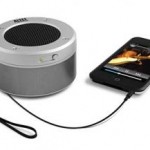
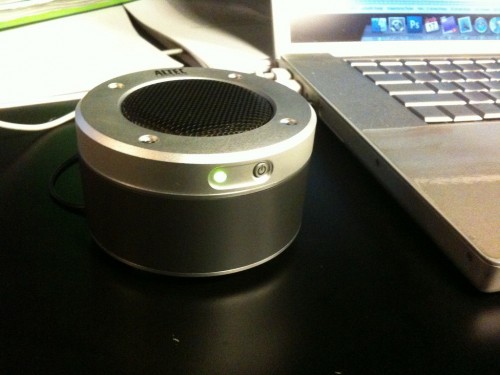
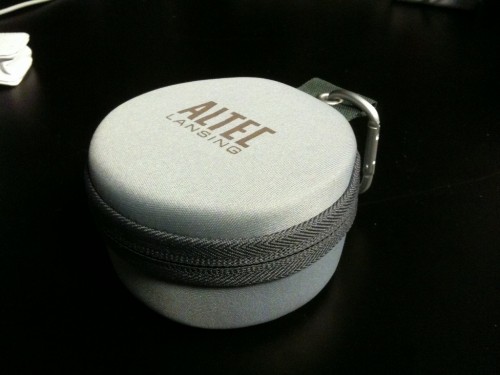
It’s about the size of a doughnut, and comes in a cute carrying case with a carabiner, so easy to travel with. The short cord curls up under the bottom and the 1/8″ stereo mini plug snaps into place to hold it in. The bottom also has little rubbery feet, which is nice. The overall build quality feels very good. It’s not lightweight for its size, but it’s also not made of cheap materials.
It’s an omnidirectional speaker, so you can place it on your desktop with the speaker pointing up, and the sound will fill the room. The speaker takes 3 AAA batteries (included), and only works when powered. My old speaker would produce a tiny bit of sound when unpowered, which was handy for listening without batteries to devices that don’t have their own speakers, such as older iPods and CD players. But that’s really not something that has been an issue for me too often, so I don’t really mind losing it. I haven’t had it long enough to get an idea of the battery life, but the power button supposedly also indicates when the battery is low. There is no volume control on the speaker, so you must use the built-in volume on your computer or music device.
For basic tasks of making computer sound audible to a larger room, or having better sound while watching video or listening to music, I find it works very well. I think at $40 it’s a fair price for the features, and the accessories are of surprisingly good quality.
There’s also a USB version, which is good because it doesn’t need batteries, but it’s not as flexible because it can only be used with a computer. It’s also $10 more.










 While in the five years since I switched to Mac I have grown to love Apple’s style of hardware and software that “just works,” I still like to know that I have control over the way things work and can customize them to my liking. For the most part I haven’t felt that being a Mac user has taken away my ability to customize, but sometimes that means replacing Apple’s built-in apps with 3rd party replacements. Missing Sync instead of iSync, Firefox instead of Safari, and the biggest of all, Office.
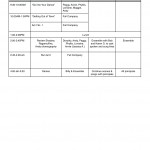 When 42nd Street started rehearsals last month, there were a lot of changes in the schedule every day, and I needed to produce new and easy-to-read schedules pretty much on the spot. Taking time to format them and make them look pretty was time we didn’t have. And they had to be easy to read as they were being made, so that we could see problems, like time overlaps or too many rehearsals scheduled in one room. Despite being in full anti-Pages mode at the time, I knew that this particular job was perfectly matched for Pages. It can look pretty, and it can look pretty immediately. I made a table, created the right number of columns, and began dragging things around to form our schedule, merging and dividing cells as needed. At right you can see an example. Stuff is just typed in without any thought to formatting, and it looks clean and legible. I would save a copy every day as a PDF to be e-mailed to the cast. Pages can also save in .doc format, but I prefer PDFs more and more as different versions of Office can screw up margins and formatting, and if the document won’t need to be edited by the recipient, I prefer the safety of knowing it will look exactly as I intended.